Admins can invite other members to the HVOne Dashboard by performing the following steps:
1. Login to the HVOne Dashboard.
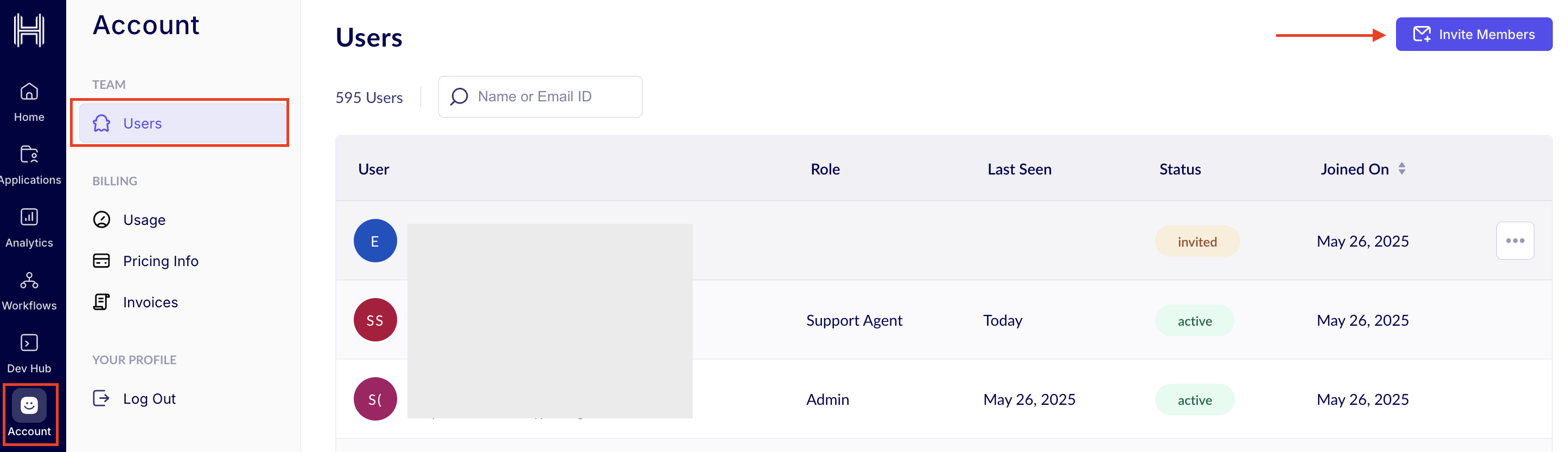
2. From the left sidebar, click the Account section.
3. Click Users under the Team section from the sidebar.
4. Click Invite Members button.
The Invite Members window opens.
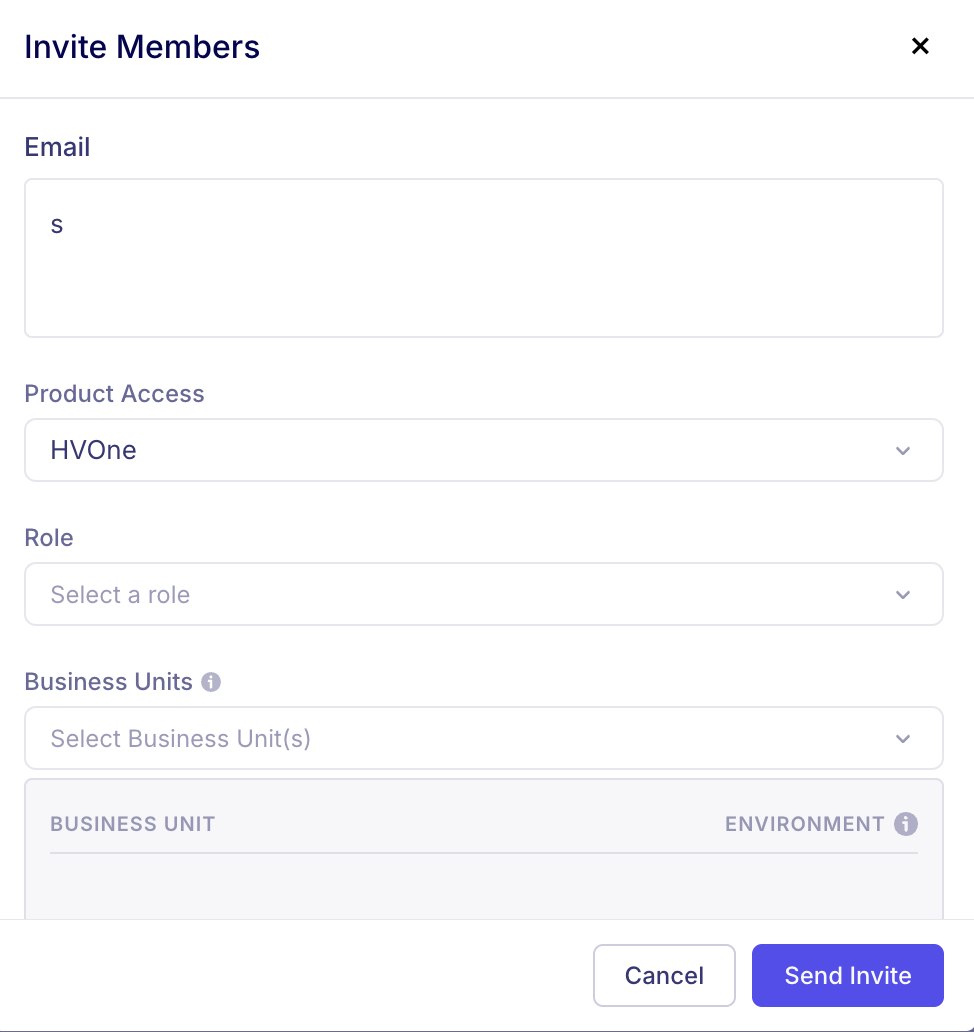
- Enter the email address of the user in the Email field (you can enter multiple email addresses, comma separated if they have to be added in the same role).
- From the Product Access drop-down, select the Product for which the access must be given.
- Select the desired Role. You can check the permissions given to a role from the Learn more option.
- Select the Business Unit to which they must have the access to.
- Click Send Invite. They will receive an email invitation with a link to sign up. The link is valid for only 24 hours.
Below is the list of available Roles and the permissions associated with them-
- Admin
- Auditor
- Developer
- Reviewer
- Support Agent
- Analyst
Permissions for each role:
If you face any error while inviting members or the invited members do not receive the invitation email, you can write to support at support@hyperverge.co with the specified details and our team will assist you.
Was this article helpful?
That’s Great!
Thank you for your feedback
Sorry! We couldn't be helpful
Thank you for your feedback
Feedback sent
We appreciate your effort and will try to fix the article